
Keep your computer awake vs. simulate activity
There are two different ways to stop your computer from "going idle" while you step away, and they solve different problems. Keep-awake tools ask the operating system not to sleep. Activity simulators generate mouse and keyboard input, the same signal your computer gets when you're actually using it. Picking the right one saves you money, or saves you from a tool that doesn't do what you need.
The short answer
- If you only need the computer not to sleep or turn off the screen (a long download, a render, a presentation, a backup), a free keep-awake tool is enough.
- If you need the computer to register you as active, because something measures the time since your last mouse or keyboard input, you need an activity simulator.
How a keep-awake tool works
A keep-awake tool tells the operating system that something needs the machine to stay on. Windows and macOS both have a built-in way for apps to do this, which is how a video player stops your screen from turning off during a movie. Microsoft describes its own tool, PowerToys Awake, as background threads that "tell Windows that they require a specific state of the machine", without changing your power plan.
What it doesn't do: it doesn't move the mouse or press keys. Your computer stays awake, but the clock that counts how long since your last input keeps running.
Common free options:
- PowerToys Awake (Windows, free, from Microsoft).
- Amphetamine (Mac, free, Mac App Store).
- caffeinate (Mac, built into macOS, run from Terminal).
How an activity simulator works
An activity simulator generates input events: it moves the cursor, scrolls, clicks, switches apps or presses keys. To the operating system and to your apps, that looks like someone using the computer, so it resets the idle counter as well as keeping the computer awake.
Simulators range from simple to configurable:
- Mouse jigglers, such as the free, open-source Mouse Jiggler for Windows, nudge the cursor a few pixels at a fixed interval. USB jigglers do the same in hardware.
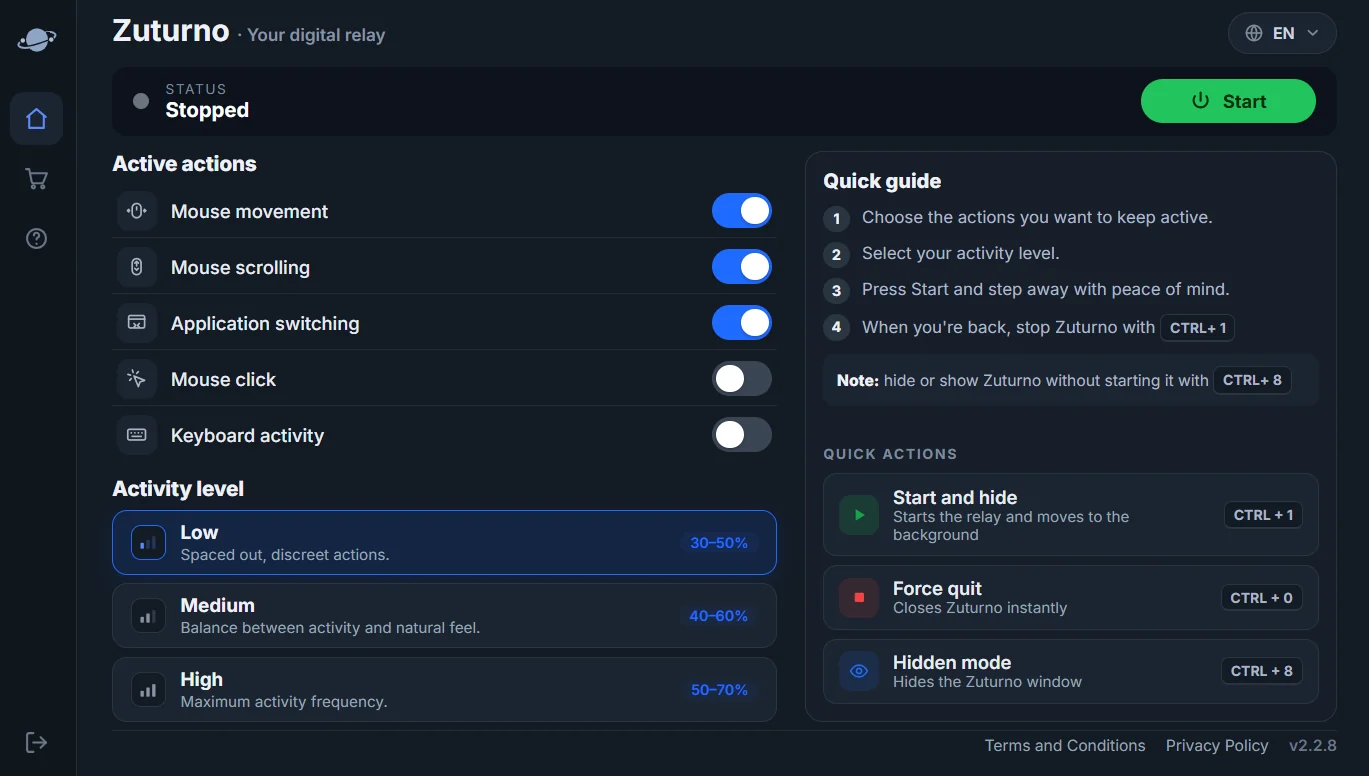
- Configurable simulators, such as Zuturno, combine several kinds of activity and let you choose which actions run and how often.
Side by side
| Keep-awake tool | Mouse jiggler | Configurable simulator | |
|---|---|---|---|
| Stops sleep and screen-off | Yes | Yes | Yes |
| Generates mouse or keyboard input | No | Mouse only | Mouse, scroll, clicks, app switching; keyboard on some platforms |
| Resets "time since last input" | No | Yes | Yes |
| Changes your power settings | No, in the tools above | No | No |
| Cost | Usually free | Usually free | Usually paid |
| Can interfere with what you're doing | No | Little | Can, so it should be easy to stop |
Which one do you need?
- Is the problem that your computer sleeps or the screen turns off? Start with a free keep-awake tool. If it solves it, you're done.
- Does something still mark you as away, or close a session after inactivity, even though the computer is awake? That's measuring input, not power. You need a simulator.
- Is moving the cursor enough? A free mouse jiggler may be all you need.
- Do you want more than the cursor, such as scrolling, app switching or different activity levels, on Windows and Mac with the same app? That's where a configurable simulator like Zuturno fits. It costs money, so try the free options first if they cover you.
Use it responsibly
Any of these tools is for your own computer and your own workflow. If you work for a company or a client, check your contract and their policies before using them on work computers or accounts.
FAQ
Does keeping my computer awake make it look active?
No. A keep-awake tool stops sleep and screen-off, but it doesn't generate input, so the time since your last mouse or keyboard input keeps counting.
Is a mouse jiggler the same as a keep-awake tool?
No. A mouse jiggler generates mouse input, which also keeps the computer awake. A keep-awake tool only asks the system not to sleep.
Do I need a paid app?
Not always. If a free keep-awake tool or a free mouse jiggler solves your problem, use it. A paid simulator makes sense when you need several kinds of activity, levels you can adjust, or the same app on Windows and Mac.
What does Zuturno do on Windows and on Mac?
On Windows it simulates mouse movement, scrolling, clicks, app switching and keyboard activity. On Mac it simulates the first four; keyboard activity is Windows-only. See Zuturno for Windows and Zuturno for Mac.