
How to stop your Mac from sleeping or locking the screen
macOS turns off the display, starts the screen saver, locks and eventually sleeps after a few minutes without use. You can change that in System Settings, with a Terminal command or with a free app. This guide covers each option, what changes on a work Mac, and why some apps still mark you as idle even when the Mac is awake. Menu names are from macOS 13 and later; on macOS 12 the same options are in System Preferences.
1. Stop the display from turning off and the screen from locking
- Open System Settings > Lock Screen.
- Set Turn display off on battery when inactive and Turn display off on power adapter when inactive to Never, or to the time you want.
- Set Start Screen Saver when inactive to Never.
- Change Require password after screen saver begins or display is turned off to a longer time if you want fewer lock prompts.
Also check System Settings > Desktop & Dock > Hot Corners: a corner set to "Lock Screen" or "Start Screen Saver" can trigger it when the pointer touches it.
2. Stop the Mac from sleeping when the display is off
- MacBook: open System Settings > Battery > Options and turn on Prevent automatic sleeping on power adapter when the display is off.
- iMac, Mac mini or Mac Studio: open System Settings > Energy and turn on Prevent automatic sleeping when the display is off.
3. Keep the Mac awake only when you need it
If you'd rather keep the normal settings and stay awake only during a long download, a render or a presentation:
- caffeinate (built into macOS). Open Terminal and run
caffeinate -dto keep the display on, orcaffeinate -ito stop idle sleep. Add-t 3600to make it last one hour. Press Control + C to stop it. - Amphetamine (free, in the Mac App Store): the same from the menu bar, with timers and rules.
These tools keep the Mac awake without changing your settings, and everything goes back to normal when you stop them.
4. On a work Mac
On a company Mac, these settings may be managed by your IT department through a device management profile, and some options appear greyed out. If you can't change a setting, that's intentional: ask IT, and don't try to work around it.
5. Why time-tracking apps still mark you as idle
Keeping the Mac awake doesn't change one thing: many apps, including time trackers like Hubstaff or Time Doctor and chat apps, decide you're idle by measuring the time since your last mouse or keyboard input. That clock keeps running even with sleep turned off. That's why you can be marked idle while you're reading, on a call or in a meeting.
What to do:
- Check the app's own idle settings. Many trackers let you or your admin adjust the idle timeout, or keep time during calls.
- Ask your manager or admin to adjust the idle timeout if it's too short for your work.
- Add the time manually or with a note when you were working away from the keyboard, if the tracker allows it.
Using an activity simulator to make a tracker record work you didn't do can breach your contract, and Zuturno's Terms prohibit it.
When an activity simulator makes sense
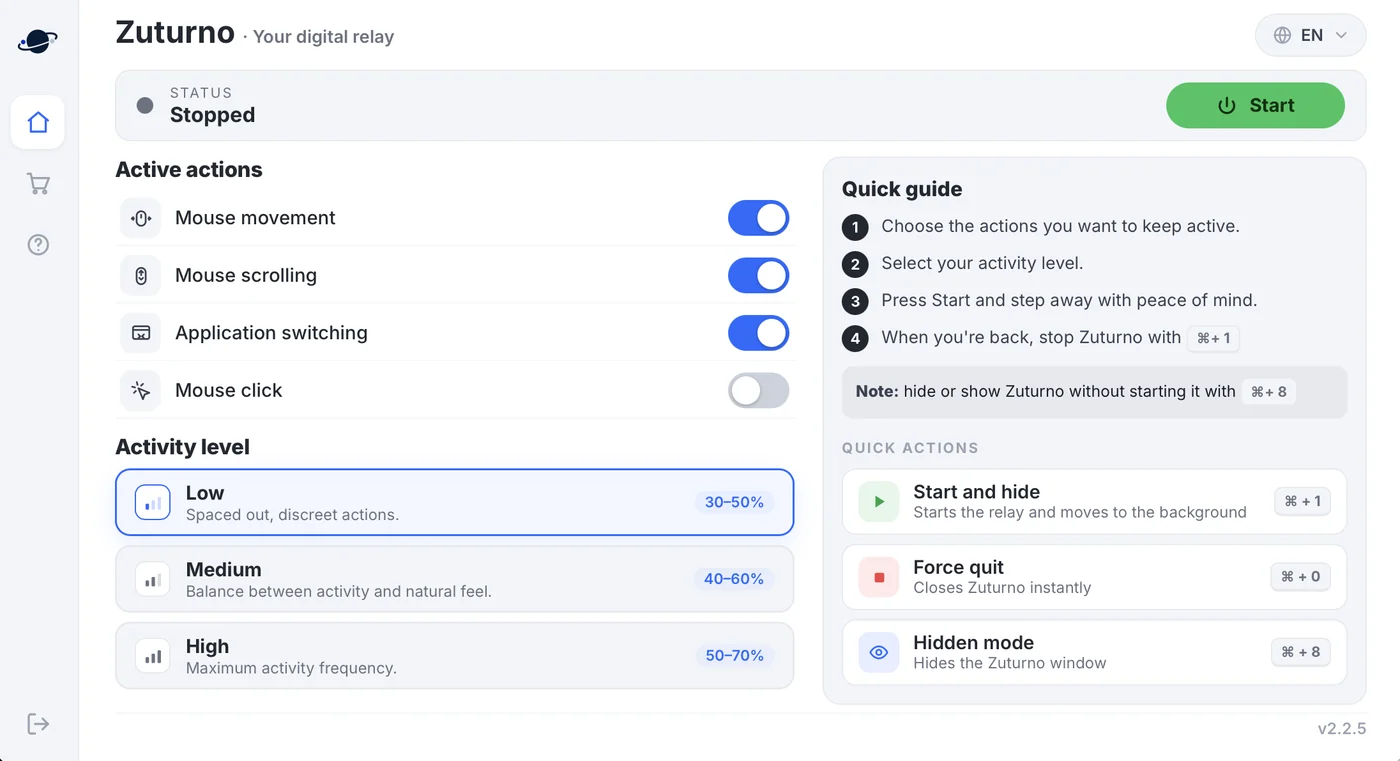
If what you need is for the Mac to register activity, not just stay awake, a simulator like Zuturno for Mac generates mouse movement, scrolling, clicks and app switching on your own Mac while you step away, and you stop it with one shortcut. If you're not sure which one you need, see Keep your computer awake vs. simulate activity.
FAQ
What does caffeinate -d do?
It keeps the display from turning off, and the Mac from sleeping, until you stop it with Control + C or close the Terminal window.
Why does my Mac still lock with the display set to Never?
Check the screen saver setting, Hot Corners and the password requirement in Lock Screen. On a work Mac, a management profile may enforce a lock.
Is Amphetamine safe?
It's a free app distributed through the Mac App Store, which means Apple reviewed it. It only keeps the Mac awake; it doesn't generate input.
Does keeping my Mac awake stop Teams or a time tracker from marking me idle?
No. Those apps measure the time since your last input, not whether the Mac is awake. See Why Teams shows you as Away.