
Keep your computer awake for downloads, renders, backups and presentations
Nothing's worse than coming back to a download at 40%, a render that stopped, or a backup that never finished because the computer went to sleep. The fix is simple, and you usually don't need to change your settings permanently.
Quick answer
- Windows: use PowerToys Awake (free, from Microsoft) while the task runs, or temporarily set sleep to Never in Settings > System > Power & battery.
- Mac: run
caffeinate -iin Terminal while the task runs, or use Amphetamine (free).
Downloads and large file transfers
Many apps don't stop the computer from sleeping while they download. Before a long download:
- Windows: turn on PowerToys Awake, or set Make my device sleep after to Never for now. To see what's keeping (or not keeping) your PC awake, open Command Prompt and run
powercfg /requests. - Mac: run
caffeinate -iand leave the Terminal window open. When the download is done, press Control + C.
Keep the computer plugged in: on battery, both systems are more aggressive about sleeping.
Renders and exports
Video, 3D and audio apps usually keep the computer awake while they render, but not always, and not when they're waiting in a queue.
- Mac tip:
caffeinate -i -w <PID>keeps the Mac awake until a specific process ends. Find the PID in Activity Monitor. - Windows tip: PowerToys Awake has a timed mode, so you can keep the PC awake for exactly the hours you need.
Backups
- Windows: File History and most backup tools only run while the PC is awake. Schedule them for a time when you're using the computer, or keep it awake during the first full backup.
- Mac: Time Machine backs up while the Mac is awake; the first backup can take hours. Keep the Mac plugged in and awake (caffeinate or Amphetamine) until it finishes.
Presentations
- PowerPoint and Keynote keep the screen on during a slideshow.
- For a demo or a dashboard on screen, use PowerToys Awake with Keep screen on, or
caffeinate -don Mac to keep the display on. - Turn off notifications (Focus Assist / Do Not Disturb) so nothing pops up mid-presentation.
When a keep-awake tool isn't enough
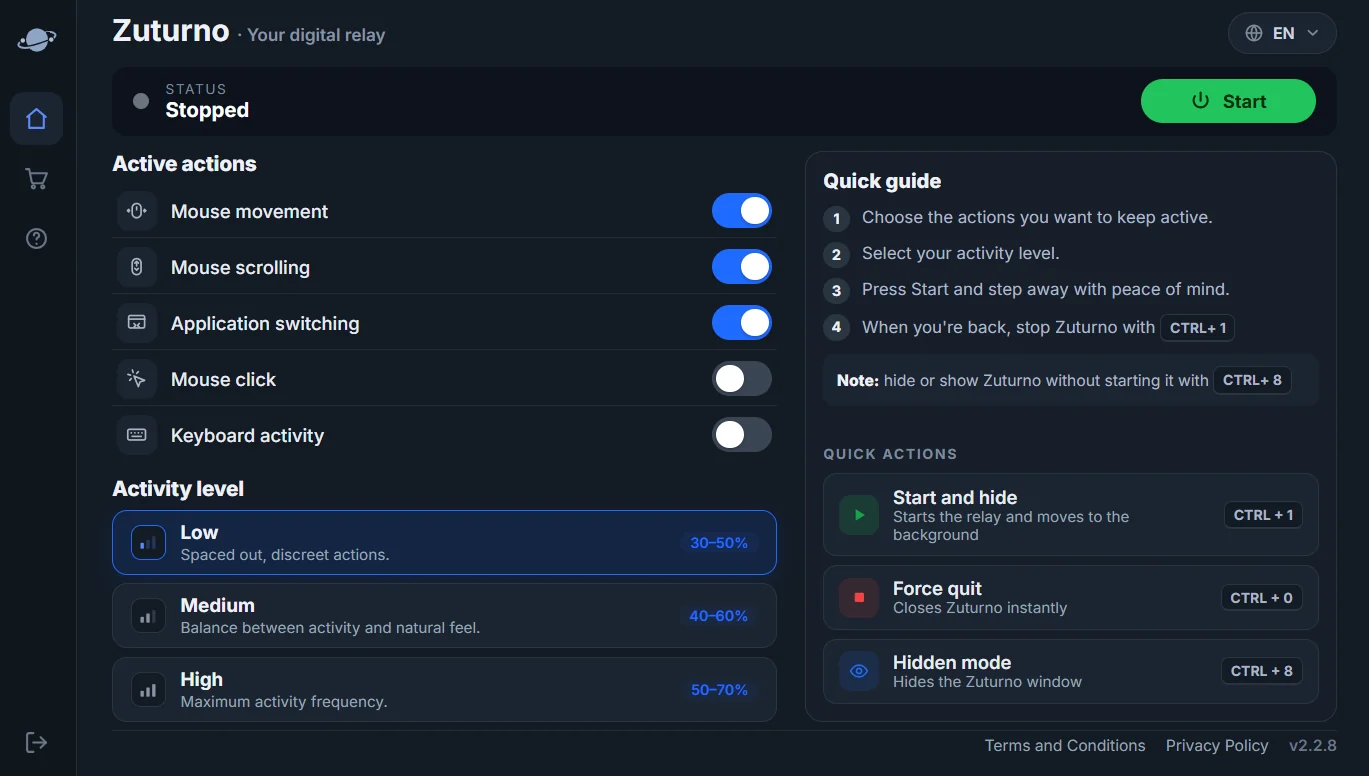
Keep-awake tools stop sleep, but they don't generate input, so apps that log you out after inactivity can still do it. If what you need is for the computer to register activity on your own machine while you step away, that's what an activity simulator like Zuturno does. See Keep your computer awake vs. simulate activity.
FAQ
Will my download continue if the screen turns off?
Usually yes, as long as the computer doesn't sleep. The screen turning off and the computer sleeping are separate settings.
Does closing the laptop lid stop a download?
On most laptops, closing the lid puts it to sleep. Windows lets you change that under the lid settings in Control Panel > Power Options; Macs stay awake with the lid closed only when connected to power and an external display.
Is it safe to leave my computer on overnight?
For a long task, yes. Keep it plugged in, on a hard surface with good airflow.