
How to install Zuturno on Windows
Installing Zuturno on Windows 10 or 11 takes a few minutes. You can install it from the Microsoft Store or with the direct installer from this website. The steps and the video tutorial are below.
Video summary
The tutorial shows the installation on Windows. You choose a plan at zuturno.com and complete checkout with Dodo Payments: you pay 0 today, billing starts after the 7-day trial and you can cancel before then. Your license arrives by email. You install Zuturno from the Microsoft Store (the recommended option) or with the direct installer from the site, open it, paste your license and sign in. You choose the actions (mouse, scrolling, clicks, app switching and keyboard) and the activity level, and press Start or Ctrl+1. The same Ctrl+1 stops it. Narrated in Spanish.
1. Pick a plan and start the free trial
- At zuturno.com, choose Personal (one computer) or Pro (up to 4 computers).
- Payments are processed by Dodo Payments, our Merchant of Record. Type your email carefully: that's where your license arrives.
- Every plan starts with a 7-day free trial: you pay 0 today, billing starts after the trial and you can cancel before then.
2. Install Zuturno
Choose one of the two options in the download section:
- Microsoft Store (recommended): Zuturno is signed by Microsoft and updates through the Store.
- Direct installer: the .msi installs and updates itself; the .exe is a standalone copy. Use it on computers without Microsoft Store access. Windows SmartScreen may show a warning with the direct installer; to avoid it, use the Microsoft Store.
3. Sign in and get started
- Open Zuturno, paste the license from your email and sign in.
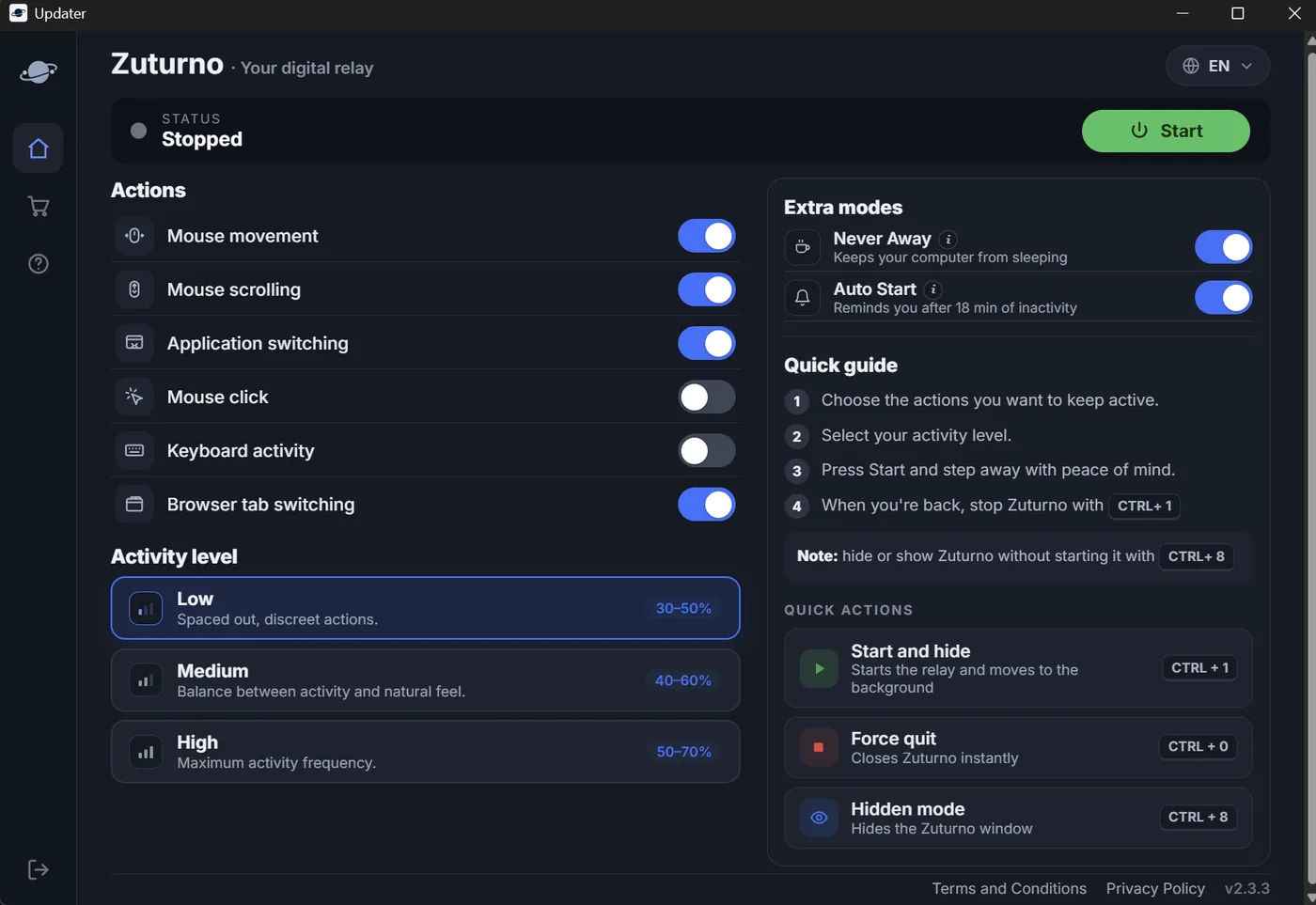
- In Actions, choose what to turn on: mouse movement, scrolling, clicks, app switching, keyboard activity and browser tab switching (new in 2.3.3, off by default).
- Choose the activity level: low, medium or high.
- Press Start or use Ctrl+1: Zuturno moves to the background. Press Ctrl+1 again to stop it.
New in version 2.3.3: the Extra modes section has Never Away, which keeps your PC awake without moving the mouse, and Auto Start, which lets you know if Zuturno is stopped and your PC has been idle for 18 minutes. The video shows an earlier version; see What's new.
You're responsible for how you use Zuturno: check your workplace rules before using it on a work computer.
FAQ
What are the shortcuts on Windows?
Ctrl+1 starts and stops Zuturno, Ctrl+8 shows or hides the window without stopping it, and Ctrl+0 closes it instantly.
Microsoft Store or direct installer?
The Microsoft Store is the simplest option: the app comes signed by Microsoft. The direct installer is for computers that can't access the Store.
Is keyboard activity available on Mac?
No. Keyboard activity is Windows-only. On Mac, Zuturno offers mouse, scrolling, clicks and app switching.
Can I use the same license on another computer?
With the Personal plan, the license works on one computer at a time: if you enter it on a new one, the previous one is deactivated. The Pro plan allows up to 4. On a Mac? See How to install Zuturno on Mac.