
How to keep your computer awake without moving the mouse
You don't need to move the mouse, or use a mouse jiggler, to stop your computer from sleeping. Windows and macOS let any app ask the system to stay awake: it's how a video player keeps your screen on during a movie. This guide covers the built-in settings, the free tools that use that feature, and what keeping the computer awake does not change.
Quick answer: to keep it awake all the time, set sleep and screen-off to Never in your power settings. To keep it awake only while you need it, use a keep-awake tool: PowerToys Awake on Windows, caffeinate -d or Amphetamine on Mac. None of them move the mouse or type.
How "keep awake" works
Windows and macOS have a power feature that lets an app say "I need the computer, and the display, to stay on". While that request is active, the system doesn't sleep or turn off the screen. When the app releases it, your normal settings apply again.
You can see which apps are holding the computer awake:
- Windows: open Command Prompt as administrator and run
powercfg /requests. - Mac: open Terminal and run
pmset -g assertions.
Option 1: change the sleep settings
- Windows 11: Settings > System > Power & battery > Screen, sleep & hibernate timeouts, and set the values to Never or a longer time. Step by step: How to stop Windows 11 from sleeping.
- Mac: System Settings > Lock Screen for the display, and Battery > Options or Energy to prevent automatic sleeping. Step by step: How to stop your Mac from sleeping.
This is free and permanent, but it's easy to forget: the computer stays on even when you don't need it, which uses more energy and, on a laptop, more battery.
Option 2: a keep-awake tool, only when you need it
- PowerToys Awake (Windows, free, from Microsoft): keeps the PC awake indefinitely or for a set time, without changing your power plan.
- caffeinate (Mac, built in):
caffeinate -dkeeps the display on until you press Control + C. - Amphetamine (Mac, free, in the Mac App Store): the same from the menu bar, with timers.
Option 3: Never Away in Zuturno
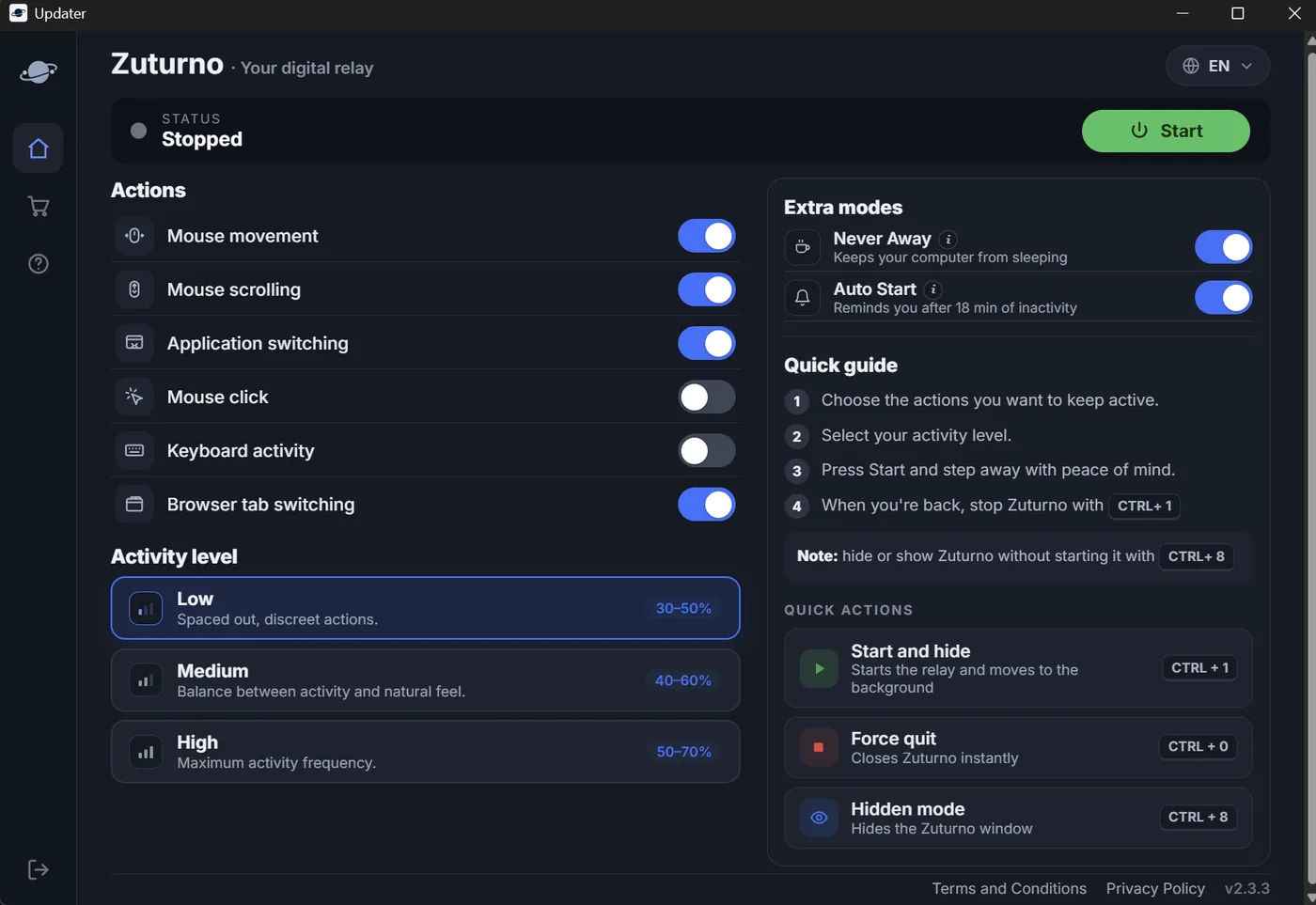
If you already use Zuturno, version 2.3.3 adds Never Away in the Extra modes section. It keeps your computer and display awake with the operating system's own power feature, the same one a video player uses. It doesn't move the mouse, type or switch apps, so you keep working normally, and it works even when Zuturno is stopped. It turns off when you switch it off or close Zuturno.
Never Away is available on Windows and Mac. If all you need is for the computer not to sleep, the free tools above do it too.
What keeping it awake does not change
Keeping the computer awake doesn't count as using it. Many apps, such as Teams, Slack or time trackers, decide you're away by measuring the time since your last mouse or keyboard input, and that clock keeps running. See Keep your computer awake vs. simulate activity and Why Teams shows you as Away.
On a work computer, your IT department may lock the screen after a set time without input, whatever your power settings say. That's intentional: ask IT before changing it, and check your company's rules before using any of these tools.
FAQ
Can I keep my computer awake without a mouse jiggler?
Yes. Change the sleep settings, or use a keep-awake tool such as PowerToys Awake, caffeinate or Amphetamine. They keep the computer on without moving the mouse.
Does keeping my computer awake keep Teams green?
No. Teams measures your activity, not whether the computer is on, so it can still show you as Away.
How do I know which app is keeping my computer awake?
Run powercfg /requests on Windows (as administrator) or pmset -g assertions on Mac.
Does Never Away move the mouse?
No. It only asks the system to keep the computer and display awake. It doesn't move the mouse, type or switch apps.